Build an Internal API Status Dashboard for Your Team in 10 Minutes
📡 Monitor your APIs — know when they go down before your users do
Better Stack checks uptime every 30 seconds with instant Slack, email & SMS alerts. Free tier available.
Affiliate link — we may earn a commission at no extra cost to you
TLDR: Build a real-time API status dashboard in 10 minutes with no code by embedding status badges in Notion, Slack, or your wiki. For custom dashboards, use API Status Check's free API to fetch status data and display all your dependencies in one view during incidents.
Your team spends the first 10 minutes of every incident asking "Is it us or is it them?" Here's how to build an internal dashboard that answers that question at a glance — no code required for the basic version, or a few lines for something custom.
By the end of this tutorial, you'll have a live dashboard showing the real-time status of every API your product depends on.
Option 1: No-Code Dashboard (5 Minutes)
Notion Embed
If your team lives in Notion, embed status badges directly in your workspace:
📡 Put this into practice — start monitoring your APIs now. Better Stack checks your endpoints every 30 seconds with instant alerts via Slack, email, and SMS. Free tier available — no credit card required.
Step 1: Create a new Notion page called "API Dependencies"
Step 2: Add a table with your critical services:
| Service | Status | Priority |
|-------------|--------------------------------------------------|----------|
| Stripe | 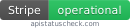 | Critical |
| OpenAI |  | Critical |
| Supabase |  | Critical |
| GitHub |  | High |
| SendGrid |  | Medium |
| Cloudflare | | Critical |
| Vercel |  | High |
Step 3: Bookmark the page and add it to your team's sidebar
The badges update in real-time. One glance tells your team which dependencies are healthy.
Slack Channel Dashboard
Create a #dependency-status Slack channel that gets automatic updates:
Step 1: Create the channel
Step 2: Add the API Status Check RSS feed to the channel:
/feed subscribe https://apistatuscheck.com/feed.xml
Step 3: Pin a message with your dependency list:
📊 API Dependency Status
Check https://apistatuscheck.com for real-time status of all dependencies.

Critical: Stripe, Supabase, Cloudflare, Auth0
High: OpenAI, GitHub, Vercel, SendGrid
Medium: Segment, Intercom, Sentry
Now the channel automatically gets posts when any monitored API changes status.
Confluence/Wiki Page
Same badge approach as Notion — embed the badge URLs directly:
<h2>Service Dependencies</h2>
<table>
  <tr>
    <td>Stripe</td>
    <td><img src="https://apistatuscheck.com/api/badge/stripe" /></td>
    <td>Payments</td>
  </tr>
  <tr>
    <td>OpenAI</td>
    <td><img src="https://apistatuscheck.com/api/badge/openai" /></td>
    <td>AI Features</td>
  </tr>
  <tr>
    <td>Supabase</td>
    <td><img src="https://apistatuscheck.com/api/badge/supabase" /></td>
    <td>Database</td>
  </tr>
</table>
Option 2: Custom HTML Dashboard (10 Minutes)
Want a full-screen dashboard on a wall TV or shared monitor? Build one:
<!DOCTYPE html>
<html>
<head>
  <title>API Status Dashboard</title>
  <meta http-equiv="refresh" content="60"> <!-- Auto-refresh every 60s -->
  <style>
    * { margin: 0; padding: 0; box-sizing: border-box; }
    body {
      font-family: -apple-system, BlinkMacSystemFont, 'Segoe UI', sans-serif;
      background: #0a0a0a;
      color: #fff;
      padding: 2rem;
    }
    h1 { font-size: 1.5rem; margin-bottom: 1.5rem; color: #888; }
    .grid {
      display: grid;
      grid-template-columns: repeat(auto-fill, minmax(280px, 1fr));
      gap: 1rem;
    }
    .card {
      background: #161616;
      border-radius: 12px;
      padding: 1.25rem;
      border: 1px solid #222;
    }
    .card.operational { border-left: 4px solid #22c55e; }
    .card.degraded { border-left: 4px solid #eab308; }
    .card.outage { border-left: 4px solid #ef4444; }
    .card.unknown { border-left: 4px solid #666; }
    .name { font-weight: 600; font-size: 1.1rem; }
    .category { font-size: 0.8rem; color: #666; margin-top: 2px; }
    .status {
      margin-top: 0.5rem;
      font-size: 0.9rem;
      display: flex;
      align-items: center;
      gap: 6px;
    }
    .dot { width: 8px; height: 8px; border-radius: 50%; display: inline-block; }
    .dot.green { background: #22c55e; }
    .dot.yellow { background: #eab308; }
    .dot.red { background: #ef4444; }
    .dot.gray { background: #666; }
    .timestamp {
      color: #444;
      font-size: 0.75rem;
      text-align: right;
      margin-top: 1.5rem;
    }
    .section { margin-bottom: 2rem; }
    .section h2 {
      font-size: 0.85rem;
      color: #555;
      text-transform: uppercase;
      letter-spacing: 1px;
      margin-bottom: 0.75rem;
    }
  </style>
</head>
<body>
  <h1>🟢 API Dependency Status</h1>

  <div class="section">
    <h2>🔴 Critical Path</h2>
    <div class="grid" id="critical"></div>
  </div>

  <div class="section">
    <h2>🟡 Important</h2>
    <div class="grid" id="important"></div>
  </div>

  <div class="section">
    <h2>ℹ️ Nice to Have</h2>
    <div class="grid" id="nice-to-have"></div>
  </div>

  <div class="timestamp" id="updated"></div>

  <script>
    const services = {
      critical: [
        { name: 'Stripe', slug: 'stripe', category: 'Payments' },
        { name: 'Supabase', slug: 'supabase', category: 'Database' },
        { name: 'Cloudflare', slug: 'cloudflare', category: 'CDN' },
        { name: 'Auth0', slug: 'auth0', category: 'Authentication' },
      ],
      important: [
        { name: 'OpenAI', slug: 'openai', category: 'AI Features' },
        { name: 'Anthropic', slug: 'anthropic', category: 'AI Features' },
        { name: 'GitHub', slug: 'github', category: 'CI/CD' },
        { name: 'SendGrid', slug: 'sendgrid', category: 'Email' },
        { name: 'Vercel', slug: 'vercel', category: 'Hosting' },
        { name: 'Twilio', slug: 'twilio', category: 'SMS' },
      ],
      'nice-to-have': [
        { name: 'Sentry', slug: 'sentry', category: 'Error Tracking' },
        { name: 'Segment', slug: 'segment', category: 'Analytics' },
        { name: 'Intercom', slug: 'intercom', category: 'Chat' },
      ]
    }

    async function fetchStatus(slug) {
      try {
        const res = await fetch(`https://apistatuscheck.com/api/status/${slug}`)
        const data = await res.json()
        return data.status || 'unknown'
      } catch {
        return 'unknown'
      }
    }

    function getStatusDisplay(status) {
      const map = {
        'operational': { class: 'operational', dot: 'green', text: 'Operational' },
        'degraded': { class: 'degraded', dot: 'yellow', text: 'Degraded' },
        'partial_outage': { class: 'degraded', dot: 'yellow', text: 'Partial Outage' },
        'major_outage': { class: 'outage', dot: 'red', text: 'Major Outage' },
      }
      return map[status] || { class: 'unknown', dot: 'gray', text: status || 'Unknown' }
    }

    async function render() {
      for (const [section, items] of Object.entries(services)) {
        const container = document.getElementById(section)
        container.innerHTML = ''

        for (const service of items) {
          const status = await fetchStatus(service.slug)
          const display = getStatusDisplay(status)

          container.innerHTML += `
            <div class="card ${display.class}">
              <div class="name">${service.name}</div>
              <div class="category">${service.category}</div>
              <div class="status">
                <span class="dot ${display.dot}"></span>
                ${display.text}
              </div>
            </div>
          `
        }
      }

      document.getElementById('updated').textContent =
        `Last updated: ${new Date().toLocaleString()}`
    }

    render()
  </script>
</body>
</html>
To deploy:
- Save as
status.html - Open directly in a browser (works offline once loaded)
- Or deploy to Vercel/Netlify for team access:
# Deploy to Vercel in one command
npx vercel status.html
Customize It
Edit the services object to match YOUR dependencies. Change the categories, add or remove services, adjust the priority tiers.
Option 3: React Component (For Your App)
If you want to embed a status dashboard inside your own application:
🔐 API keys scattered across .env files and Slack DMs? 1Password securely stores and shares API tokens, environment variables, and service credentials across your team — with audit logs and rotation reminders.
// components/DependencyStatus.tsx
import { useEffect, useState } from 'react'

interface Service {
  name: string
  slug: string
  category: string
  critical: boolean
}

const SERVICES: Service[] = [
  { name: 'Stripe', slug: 'stripe', category: 'Payments', critical: true },
  { name: 'Supabase', slug: 'supabase', category: 'Database', critical: true },
  { name: 'OpenAI', slug: 'openai', category: 'AI', critical: false },
  { name: 'GitHub', slug: 'github', category: 'CI/CD', critical: false },
  { name: 'Cloudflare', slug: 'cloudflare', category: 'CDN', critical: true },
  // Add your services here
]

interface StatusData {
  slug: string
  status: string
  checkedAt: Date
}

export function DependencyStatus() {
  const [statuses, setStatuses] = useState<Map<string, StatusData>>(new Map())
  const [loading, setLoading] = useState(true)

  useEffect(() => {
    async function fetchAll() {
      const results = new Map<string, StatusData>()

      await Promise.allSettled(
        SERVICES.map(async (service) => {
          try {
            const res = await fetch(
              `https://apistatuscheck.com/api/status/${service.slug}`,
              { signal: AbortSignal.timeout(5000) }
            )
            const data = await res.json()
            results.set(service.slug, {
              slug: service.slug,
              status: data.status,
              checkedAt: new Date(),
            })
          } catch {
            results.set(service.slug, {
              slug: service.slug,
              status: 'unknown',
              checkedAt: new Date(),
            })
          }
        })
      )

      setStatuses(results)
      setLoading(false)
    }

    fetchAll()
    const interval = setInterval(fetchAll, 60000) // Refresh every minute
    return () => clearInterval(interval)
  }, [])

  const allOperational = [...statuses.values()].every(
    s => s.status === 'operational' || s.status === 'unknown'
  )

  const statusColor = (status: string) => {
    switch (status) {
      case 'operational': return 'text-green-500'
      case 'degraded':
      case 'partial_outage': return 'text-yellow-500'
      case 'major_outage': return 'text-red-500'
      default: return 'text-gray-500'
    }
  }

  if (loading) return <div className="animate-pulse">Loading dependency status...</div>

  return (
    <div className="rounded-lg border p-4">
      <div className="flex items-center justify-between mb-3">
        <h3 className="font-semibold">API Dependencies</h3>
        <span className={allOperational ? 'text-green-500 text-sm' : 'text-yellow-500 text-sm'}>
          {allOperational ? '✅ All Operational' : '⚠️ Issues Detected'}
        </span>
      </div>

      <div className="space-y-2">
        {SERVICES.map(service => {
          const data = statuses.get(service.slug)
          return (
            <div key={service.slug} className="flex items-center justify-between text-sm">
              <div className="flex items-center gap-2">
                <span>{service.name}</span>
                {service.critical && (
                  <span className="text-xs bg-red-100 text-red-700 px-1.5 py-0.5 rounded">
                    Critical
                  </span>
                )}
              </div>
              <span className={statusColor(data?.status || 'unknown')}>
                {data?.status || 'checking...'}
              </span>
            </div>
          )
        })}
      </div>

      <div className="text-xs text-gray-400 mt-3 text-right">
        Powered by <a href="https://apistatuscheck.com" className="underline">API Status Check</a>
      </div>
    </div>
  )
}
Use it in any internal admin panel, dashboard, or settings page:
import { DependencyStatus } from '@/components/DependencyStatus'

export default function AdminDashboard() {
  return (
    <div className="grid grid-cols-3 gap-4">
      <MetricsPanel />
      <DependencyStatus />  {/* Always visible */}
      <RecentAlerts />
    </div>
  )
}
Option 4: CLI Dashboard (For Terminal Lovers)
If your team prefers the terminal:
#!/bin/bash
# dependency-status.sh — Quick CLI check

APIS=("stripe" "openai" "supabase" "github" "cloudflare" "vercel" "sendgrid")

echo "━━━ API Dependency Status ━━━"
echo ""

for api in "${APIS[@]}"; do
  STATUS=$(curl -s "https://apistatuscheck.com/api/status/$api" | jq -r '.status' 2>/dev/null)

  case $STATUS in
    operational)     ICON="🟢" ;;
    degraded)        ICON="🟡" ;;
    partial_outage)  ICON="🟠" ;;
    major_outage)    ICON="🔴" ;;
    *)               ICON="⚪" ;;
  esac

  printf "  %s %-15s %s\n" "$ICON" "$api" "$STATUS"
done

echo ""
echo "━━━ $(date) ━━━"
Add it to your shell aliases:
alias depstatus='~/scripts/dependency-status.sh'
Or run it automatically when you start your incident terminal:
# .bashrc or .zshrc
function incident() {
  echo "🚨 Incident Mode"
  ~/scripts/dependency-status.sh
  echo ""
  echo "Starting incident investigation..."
}
Option 5: CI/CD Pre-Deploy Check
Block deployments when critical dependencies are down:
# .github/workflows/deploy.yml
jobs:
  check-dependencies:
    runs-on: ubuntu-latest
    steps:
      - name: Check critical API dependencies
        run: |
          echo "Checking API dependency status..."
          CRITICAL_APIS=("stripe" "supabase" "cloudflare")
          FAILED=0

          for api in "${CRITICAL_APIS[@]}"; do
            STATUS=$(curl -s "https://apistatuscheck.com/api/status/$api" | jq -r '.status')
            if [ "$STATUS" != "operational" ]; then
              echo "⚠️ $api is $STATUS — deployment may be risky"
              FAILED=1
            else
              echo "✅ $api is operational"
            fi
          done

          if [ "$FAILED" -eq 1 ]; then
            echo ""
            echo "::warning::Critical dependencies are degraded. Deploy with caution."
          fi

  deploy:
    needs: check-dependencies
    runs-on: ubuntu-latest
    steps:
      - uses: actions/checkout@v4
      - run: npm run deploy
Which Option Should You Choose?
| Option | Best For | Setup Time | Maintenance |
|---|---|---|---|
| Notion/Wiki badges | Small teams, quick visibility | 5 min | Zero |
| Slack RSS feed | Teams on Slack | 2 min | Zero |
| Custom HTML | Wall TV dashboard, shared monitors | 10 min | Minimal |
| React component | Internal admin tools | 20 min | Low |
| CLI script | Terminal-first engineers | 5 min | Zero |
| CI/CD check | Deployment safety | 10 min | Zero |
Our recommendation: Start with Notion badges or Slack RSS (zero maintenance). Add the React component to your admin panel when you're ready. Add the CI/CD check to your deployment pipeline.
Get Started
- Pick one option above — start with whatever your team already uses
- Customize the service list — only include APIs your product actually depends on
- Share with your team — the dashboard only helps if people look at it
- Set up alerts — dashboards are for at-a-glance checks; alerts are for real-time notification
The best status dashboard is the one your team actually checks. Keep it simple, keep it visible, and stop wasting incident time on "is it us or is it them?"
All examples use the API Status Check API and badges. Monitor 100+ APIs for free.
🛠 Tools We Use & Recommend
Tested across our own infrastructure monitoring 200+ APIs daily
Uptime Monitoring & Incident Management
Used by 100,000+ websites
Monitors your APIs every 30 seconds. Instant alerts via Slack, email, SMS, and phone calls when something goes down.
“We use Better Stack to monitor every API on this site. It caught 23 outages last month before users reported them.”
Secrets Management & Developer Security
Trusted by 150,000+ businesses
Manage API keys, database passwords, and service tokens with CLI integration and automatic rotation.
“After covering dozens of outages caused by leaked credentials, we recommend every team use a secrets manager.”
SEO & Site Performance Monitoring
Used by 10M+ marketers
Track your site health, uptime, search rankings, and competitor movements from one dashboard.
“We use SEMrush to track how our API status pages rank and catch site health issues early.”
Alert Pro
14-day free trialStop checking — get alerted instantly
Alert Pro checks the 60+ APIs we monitor every hour and emails you within the hour of a detected change.
- Email alerts for up to 10 of the APIs we monitor
- $0 charged today — card required to start
- Cancel anytime — $9/mo after trial